The evening begins with the reservation.
Wine pairing, champagne on arrival, truffle with the main course: your guests book add-ons together with their table. You earn more per evening and know in advance what to prepare.
- Payment
- Online or at the restaurant
- Availability
- Seasonally controlled
- Booking channels
- Online and by phone
The menu before the menu
What guests like to book in advance
This is what a catalogue for a tasting menu looks like. You set the prices, texts and images yourself.

Champagne on arrival
€19.00Served as soon as guests are seated

Wine pairing
€59.00Five glasses with the menu, per person

Non-alcoholic pairing
€39.00Juices, kombucha and teas with every course

White Alba truffle
€34.00Bookable from October to December only

Flowers on the table
€45.00For anniversaries, paid at the restaurant
Sample prices from our demo restaurant.
Why add-ons
More revenue, fewer surprises
More per table
Guests choose the wine pairing at home, at their leisure, rather than under time pressure at the table.
Better prepared
Kitchen, sommelier and service see before the evening how many pairings, truffles or bouquets are needed.
Seasons under control
Truffles, asparagus or New Year's Eve: limit an add-on to a set period. Afterwards it disappears on its own.
Catalogue
All add-ons in one place
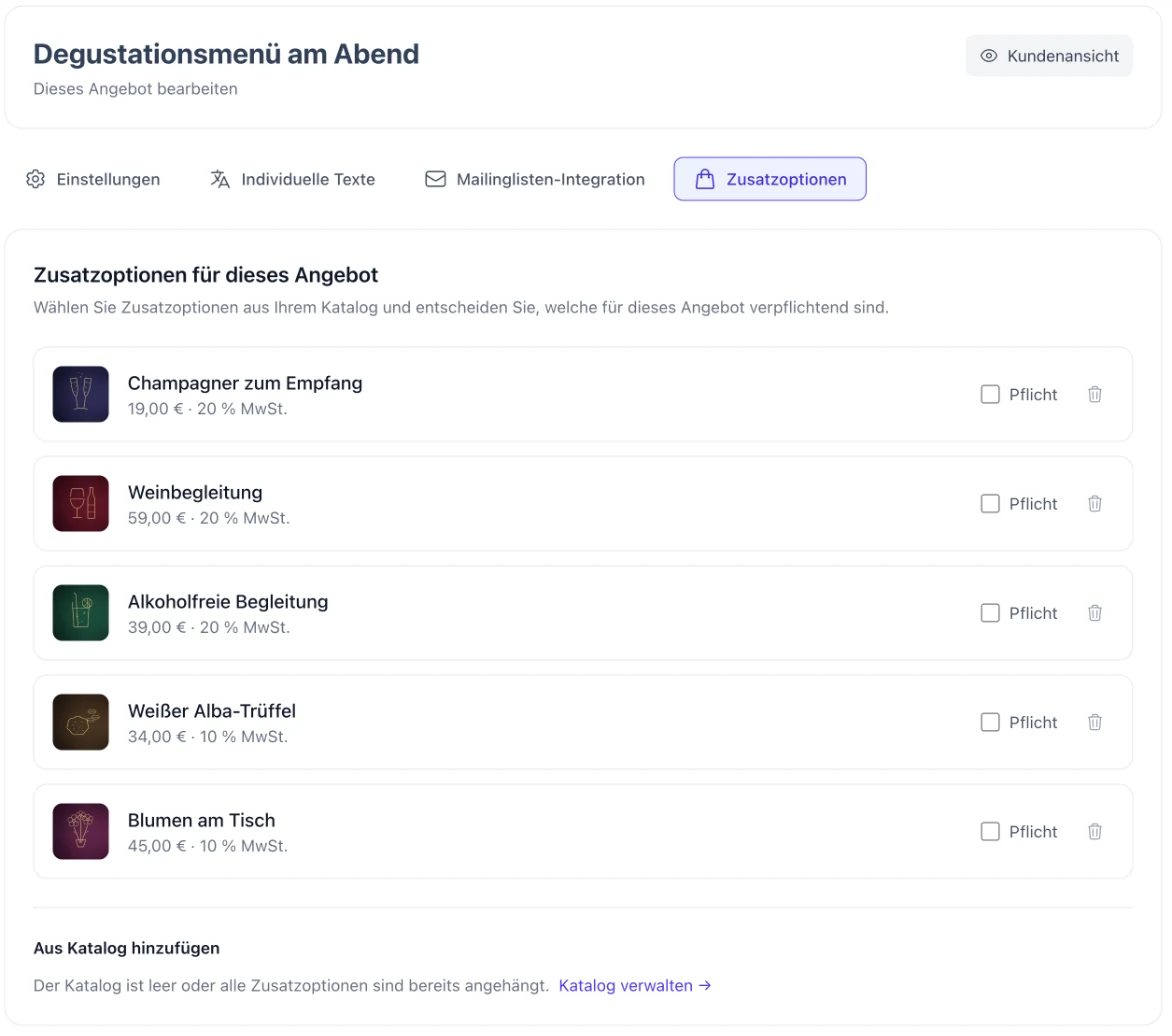
You create each add-on once and use it in as many offers as you like. The list shows price, VAT, availability period and how often it has been booked.
- Image, name and description for guests
- Price and VAT per add-on
- Number of bookings at a glance
- Active or paused, without deleting
Settings
Exactly as much as you want to offer
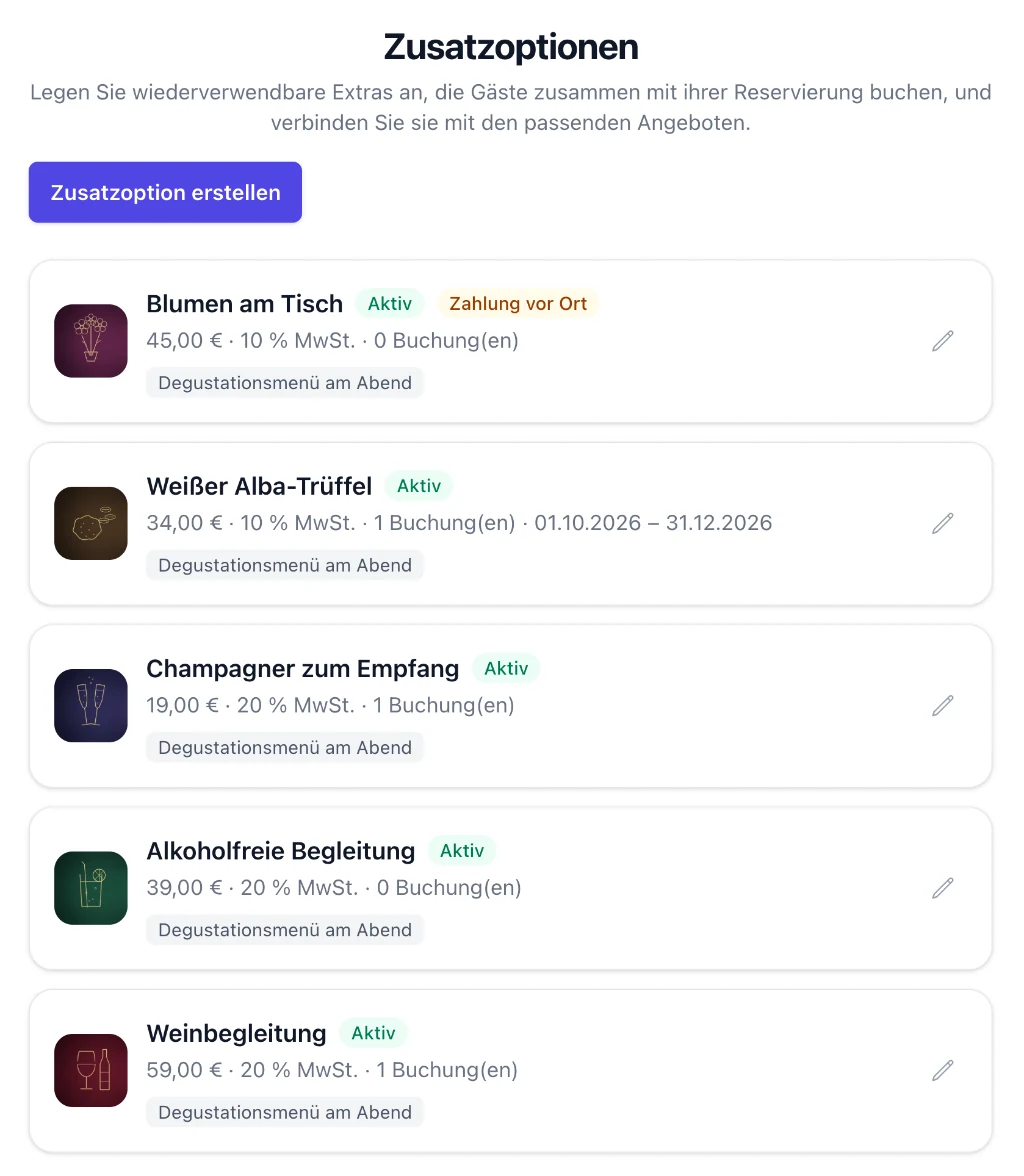
You set minimum and maximum quantity, availability period and billing for each add-on. Flowers only once per table, truffles only in season.
- Minimum and maximum quantity
- Available from and until, e.g. for truffle season
- Charge online or just note it
- Translations for international guests
Offers
The right add-ons for each offer
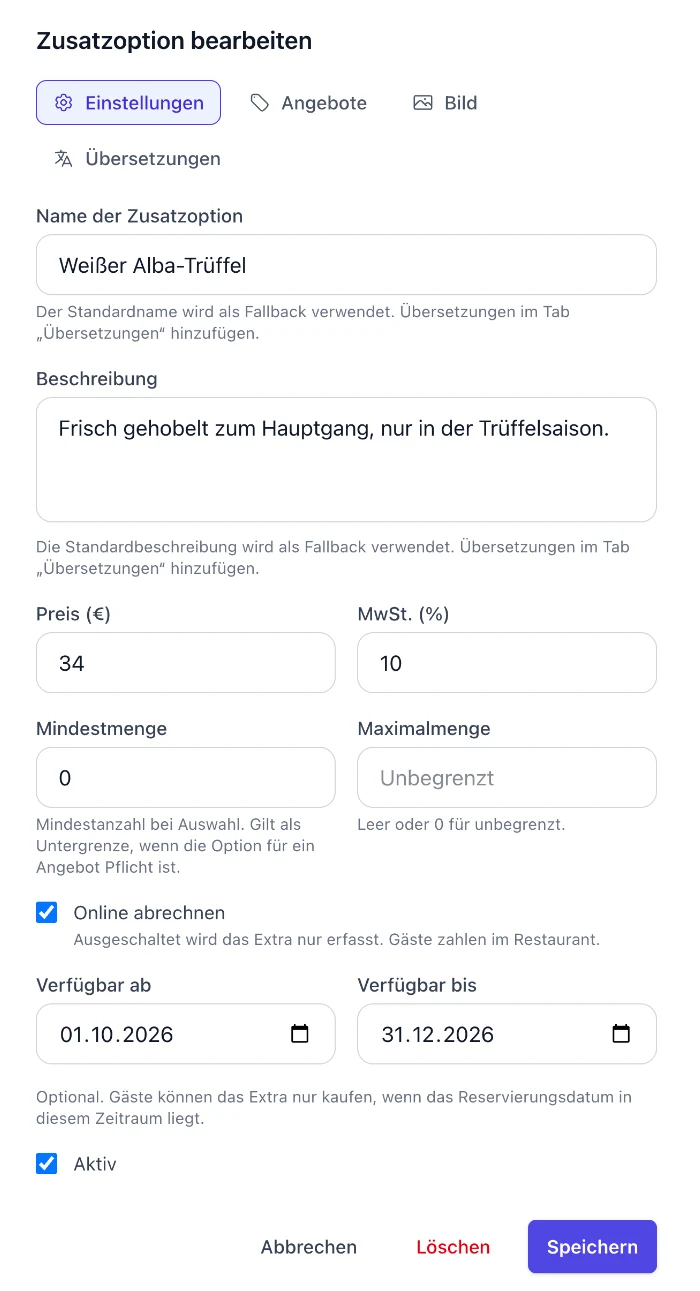
Wine pairing with the tasting menu, none of it with the set lunch. You decide for each offer which add-ons guests see.
- Link add-ons from the catalogue
- Without linked add-ons, the offer stays as before
- Mark as mandatory, e.g. a menu
- One add-on in several offers
For your guests
When booking, not at the table
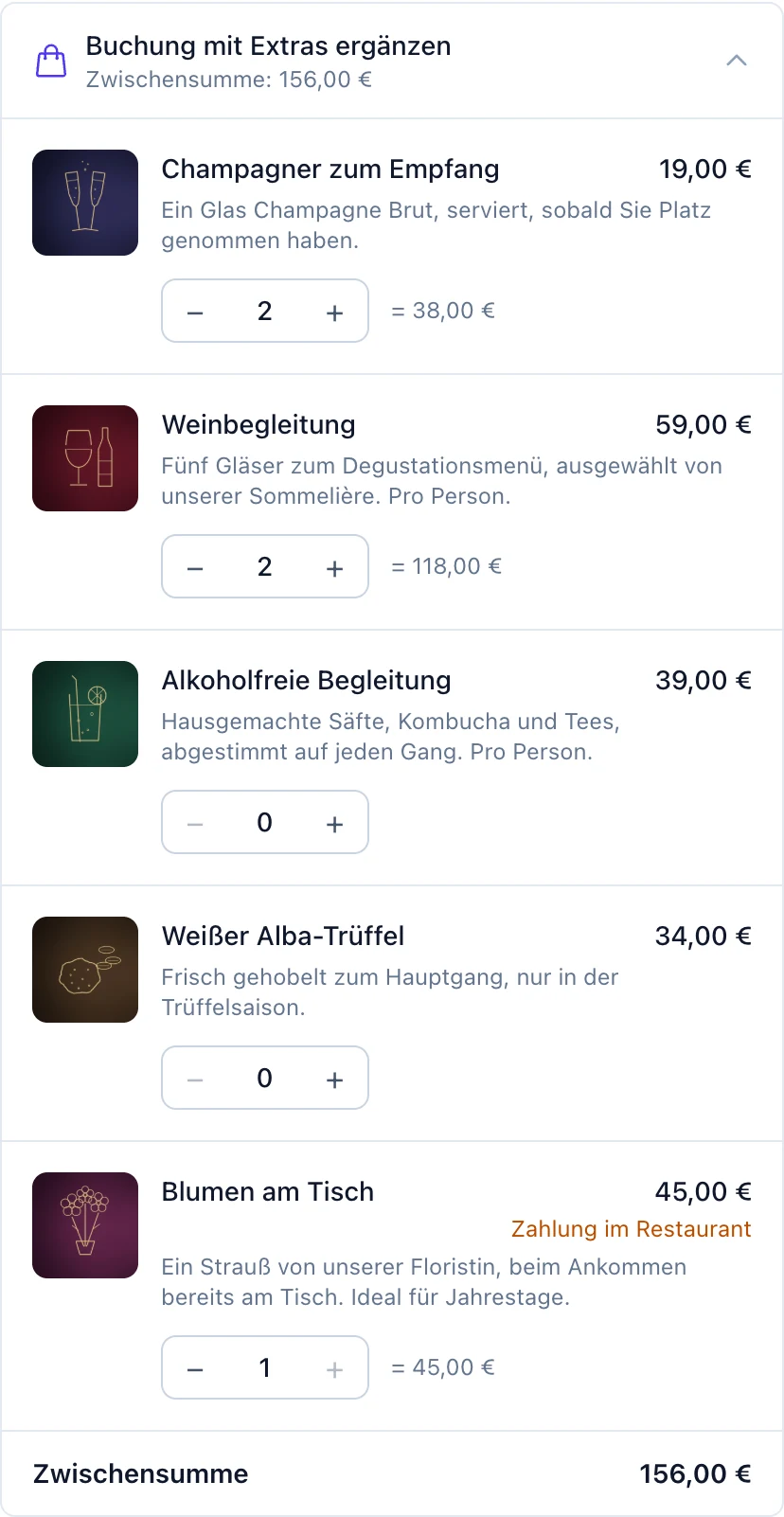
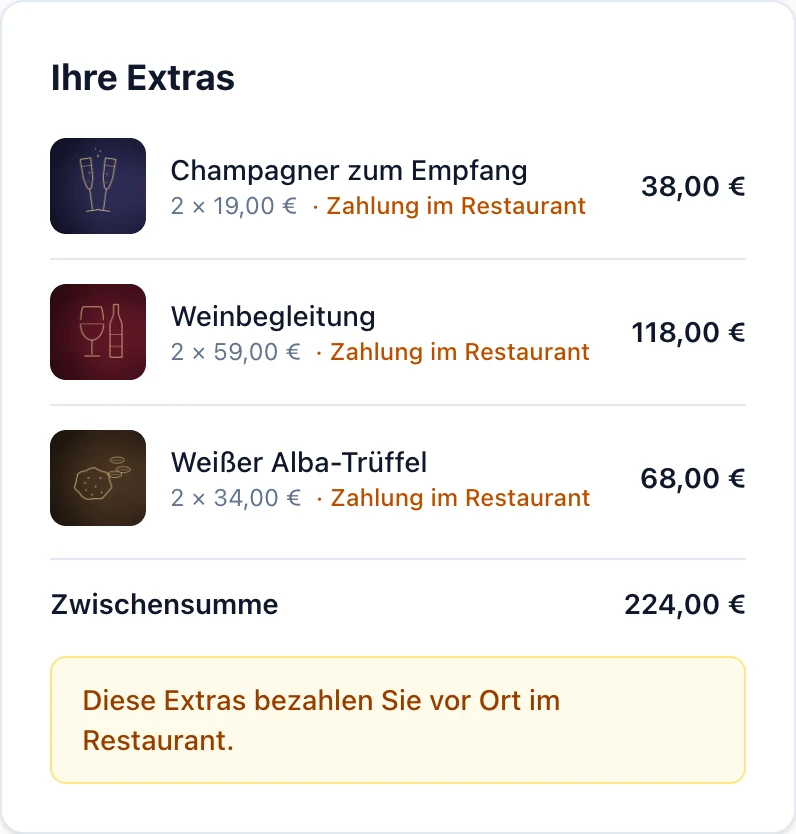
Guests see your add-ons with image, description and price, choose the quantity and see the subtotal. The confirmation page lists everything once more.
- Images and descriptions like on a menu
- Subtotal updates as they go
- Add-ons paid at the restaurant are clearly marked
- In the guest's language
For your team
Everything on the reservation
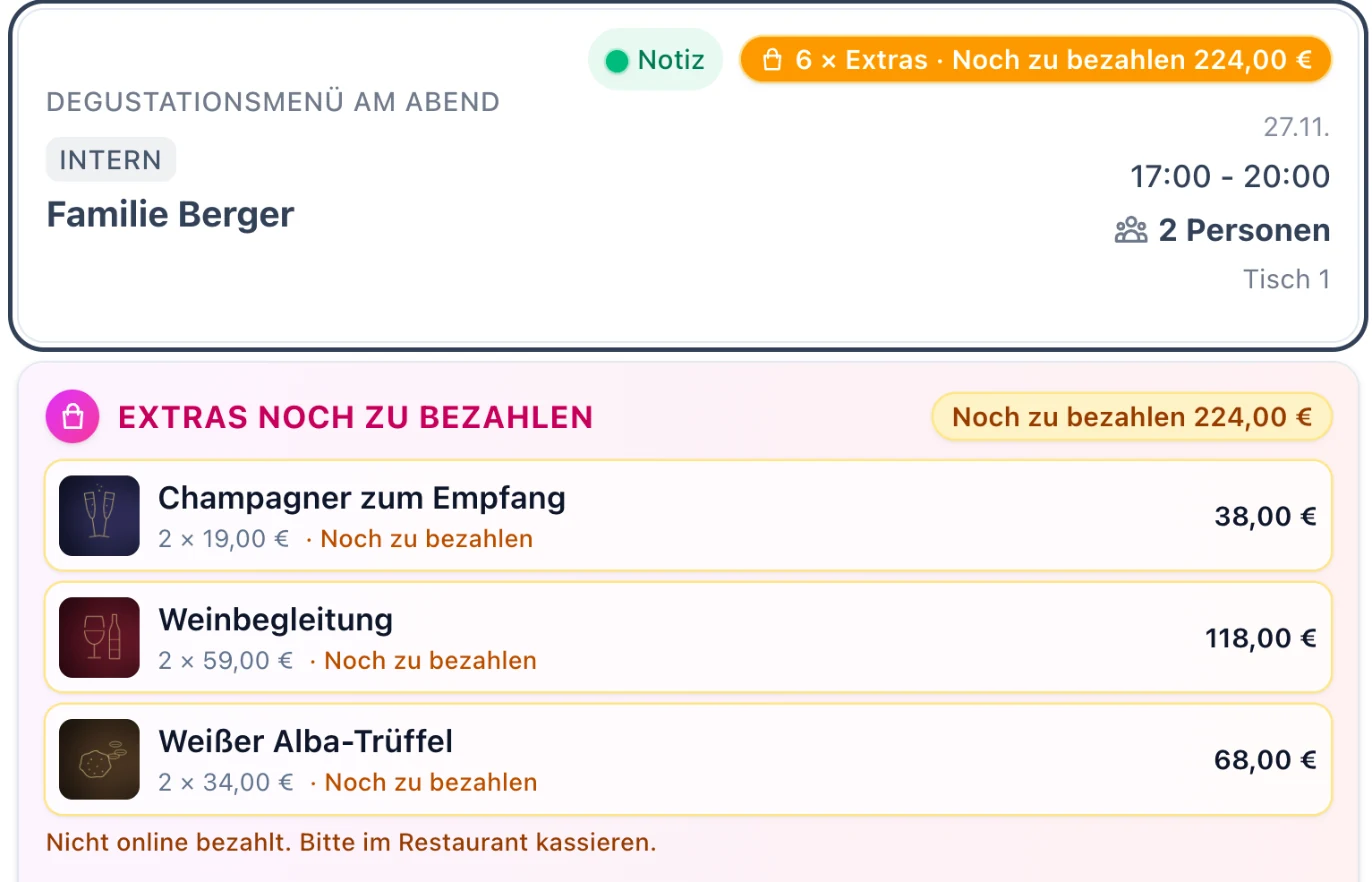
A label shows at once how many add-ons are booked and what is still to be paid. Expanded, it lists every add-on with quantity and price.
- Paid or outstanding, at a glance
- Quantity and price per add-on
- Also in the confirmation email to the guest
- Included in the reservation export
Payment
You decide when payment happens
For each add-on you decide whether the guest pays with the booking or at the restaurant.
Online with the booking
The guest pays for the add-ons directly when reserving. This requires payment processing to be set up.
At the restaurant
The add-on is only noted. Guest and team can see that it will be charged during the visit.
Booked by phone
Create a reservation in the admin and book add-ons right along with it. Payment is then made at the restaurant.
How it works
- 01
Create add-ons
Admin → Add-ons → Create Add-on. Enter name, price, VAT and image.
- 02
Link them to offers
In the offer, select the matching add-ons under Add-ons.
- 03
Guests book them too
From now on the add-ons appear when reserving and on every booking in the admin.
Questions
Does the guest have to pay online?
No. For each add-on you choose whether it is paid online with the booking or only noted and charged at the restaurant.
Can I offer an add-on for a limited time only?
Yes. With “Available from” and “Available until”, an add-on can only be booked if the reservation date falls within that period.
Can an add-on be mandatory?
Yes. In the offer you mark an add-on as mandatory. Guests must then choose at least the minimum quantity.
Are the add-ons translated?
Yes. You maintain name and description per language. On the first entry we automatically translate into your restaurant's languages.
Where do I find the feature?
In the admin under “Add-ons”. If you don't see the menu item yet, just send us a short message. We will activate it for your restaurant.
Ready for your first champagne on arrival?
Set up reservier.net or talk to us about your add-ons.
We use essential cookies for the website to function properly. With your consent, we also use analytics cookies to improve your experience. Privacy Policy